Restaurant JSON-LD Schema Generator: Complete Guide 2026
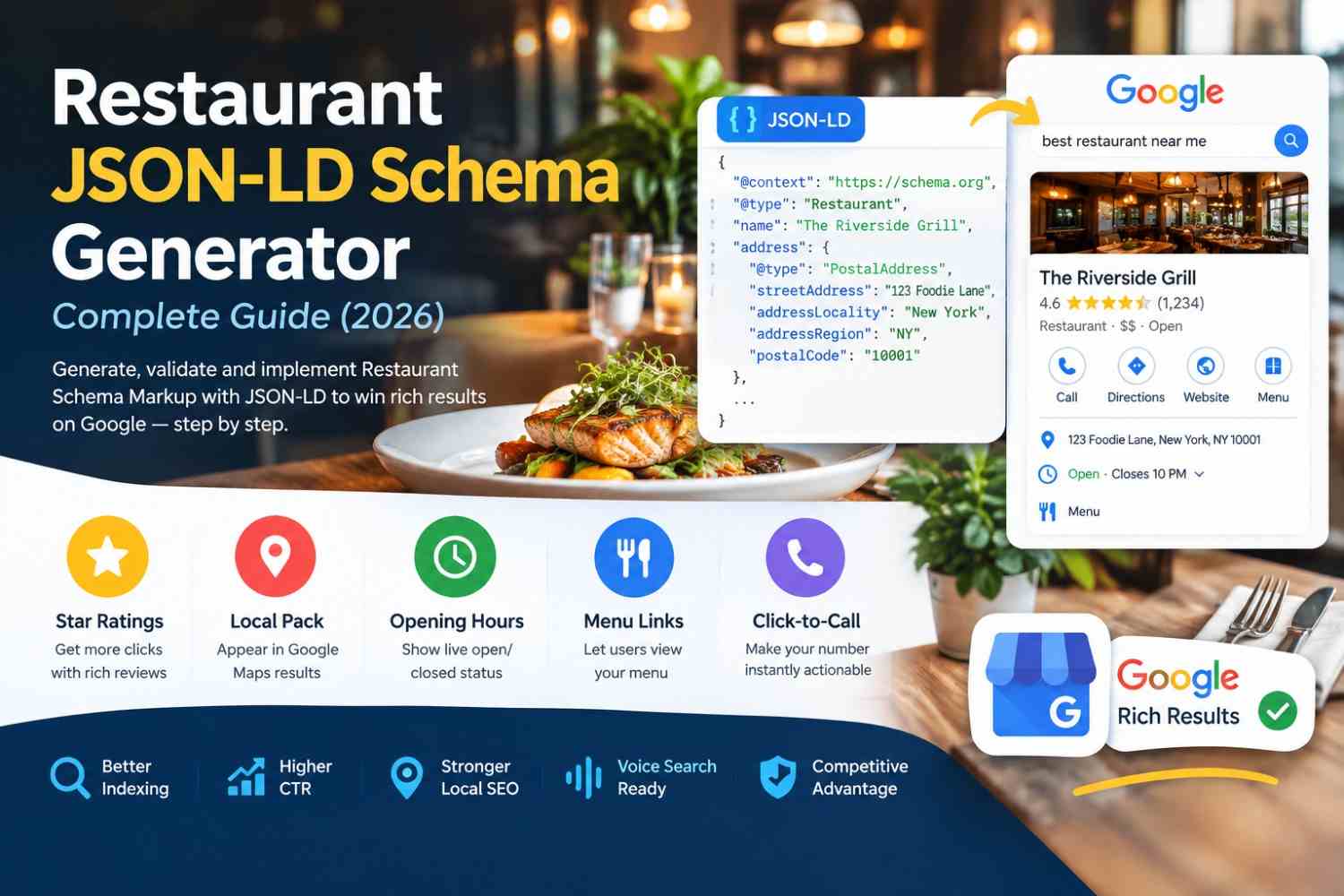
Learn how to generate, validate, and implement Restaurant Schema Markup with JSON-LD to win rich results on Google — step by step.
1. What Is Restaurant Schema Markup?
Restaurant Schema Markup is structured data code, written in JSON-LD format, that you add to your restaurant's website. It tells search engines like Google exactly what your business is: its name, address, phone number, cuisine type, opening hours, menu, price range, and customer ratings.
It is based on the Restaurant type in Schema.org, a collaborative vocabulary supported by Google, Bing, Yahoo, and Yandex. The Restaurant type extends FoodEstablishment, which in turn extends LocalBusiness. To understand how this fits into the broader picture, see our guide to schema markup.
Think of Restaurant Schema as a digital business card that only search engines can read. When Google understands your restaurant better, it shows richer, more attractive results to hungry searchers.
Unlike microdata or RDFa, JSON-LD (JavaScript Object Notation for Linked Data) is Google's preferred format because it lives in a separate script tag and does not interfere with your page's HTML structure.
2. Why Restaurants Need JSON-LD Schema
The restaurant industry is one of the most competitive niches in local SEO. When a user searches "best pizza near me" or "Italian restaurant open now," Google's local pack and Knowledge Panel results are dominated by structured data signals. Without schema, your restaurant is invisible in these premium placements.
Key SEO Benefits
- Higher click-through rates (CTR) — rich results get up to 30% more clicks than plain blue links
- Improved local SEO rankings — Google rewards well-structured local business data
- Voice search optimization — assistants like Google Assistant pull from schema data to answer "Is [Restaurant] open right now?"
- Enhanced Knowledge Panel — your business info appears in the right-side panel for branded searches
- Better indexing — helps Googlebot understand and categorize your pages faster
- Competitive edge — most small restaurants still don't use schema markup correctly
What Schema Unlocks Visually
- Star Ratings — show review stars directly in search results
- Local Pack — boost appearance in Google Maps results
- Opening Hours — display live open/closed status to searchers
- Menu Links — surface your menu directly from search results
- Price Range — show $–$$$$ pricing in the Knowledge Panel
- Click-to-Call — make your phone number instantly actionable
3. Rich Results You Can Unlock
Google supports several types of rich results for restaurants. Here's what you can unlock with proper schema implementation:
- Review Snippets — star rating + review count — requires AggregateRating schema
- Local Pack (Map Pack) — name, address, hours, rating — requires Restaurant + LocalBusiness schema
- Knowledge Panel — full business info panel — requires Restaurant + sameAs links
- Menu — link to menu in search snippet — requires hasMenu property
- Breadcrumbs — site navigation in results — requires BreadcrumbList schema
- FAQ — expandable questions in SERP — requires FAQPage schema
- Events — upcoming events, live music — requires Event schema
Pro Tip: Combine your Restaurant schema with an AggregateRating schema to unlock star ratings in search results — the single most impactful rich result for restaurants.
4. Required vs. Recommended Properties
Required Properties (Google Minimum)
- @context — always https://schema.org
- @type — set to Restaurant
- name — exact legal name of your restaurant
- address — full postal address using PostalAddress
Highly Recommended Properties
- telephone — international format, e.g., +1-555-123-4567
- url — your restaurant's official website URL
- image — high-quality photo (minimum 696px wide, 1x1 or 4x3 ratio)
- openingHoursSpecification — full weekly schedule with times
- servesCuisine — e.g., "Italian", "Mexican", "Sushi"
- priceRange — use dollar signs: "$", "$$", "$$$", or "$$$$"
- aggregateRating — review count and average rating
- hasMenu — direct URL to your menu page
- geo — latitude and longitude for precise map placement
- sameAs — links to Yelp, TripAdvisor, Google Maps, Facebook
- acceptsReservations — true or false
Optional but Powerful Properties
- currenciesAccepted — e.g. "USD"
- paymentAccepted — e.g. "Cash, Credit Card"
- amenityFeature — outdoor seating, WiFi, parking, etc.
- review — individual Review schema objects
- event — link to upcoming events
- logo — your restaurant logo URL
5. Full Restaurant JSON-LD Example
Below is a complete, production-ready Restaurant JSON-LD schema example. Copy this into your page's <head> section, then replace the placeholder values with your restaurant's actual information.
{
"@context": "https://schema.org",
"@type": "Restaurant",
"name": "The Golden Fork",
"url": "https://www.goldenfork.com",
"telephone": "+1-212-555-0199",
"email": "info@goldenfork.com",
"image": "https://www.goldenfork.com/images/restaurant-front.jpg",
"logo": "https://www.goldenfork.com/images/logo.png",
"description": "Award-winning Italian restaurant in downtown Manhattan, serving authentic pasta, pizza, and seafood since 1998.",
"servesCuisine": ["Italian", "Mediterranean"],
"priceRange": "$$$",
"hasMenu": "https://www.goldenfork.com/menu",
"acceptsReservations": "true",
"currenciesAccepted": "USD",
"paymentAccepted": "Cash, Credit Card, Contactless",
"address": {
"@type": "PostalAddress",
"streetAddress": "45 West 55th Street",
"addressLocality": "New York",
"addressRegion": "NY",
"postalCode": "10019",
"addressCountry": "US"
},
"geo": {
"@type": "GeoCoordinates",
"latitude": "40.7632",
"longitude": "-73.9806"
},
"openingHoursSpecification": [
{
"@type": "OpeningHoursSpecification",
"dayOfWeek": ["Monday", "Tuesday", "Wednesday", "Thursday"],
"opens": "11:30",
"closes": "22:00"
},
{
"@type": "OpeningHoursSpecification",
"dayOfWeek": ["Friday", "Saturday"],
"opens": "11:30",
"closes": "23:30"
},
{
"@type": "OpeningHoursSpecification",
"dayOfWeek": "Sunday",
"opens": "12:00",
"closes": "21:00"
}
],
"aggregateRating": {
"@type": "AggregateRating",
"ratingValue": "4.7",
"reviewCount": "328",
"bestRating": "5",
"worstRating": "1"
},
"amenityFeature": [
{ "@type": "LocationFeatureSpecification", "name": "Outdoor Seating", "value": true },
{ "@type": "LocationFeatureSpecification", "name": "Free WiFi", "value": true },
{ "@type": "LocationFeatureSpecification", "name": "Private Dining Room", "value": true },
{ "@type": "LocationFeatureSpecification", "name": "Valet Parking", "value": true }
],
"sameAs": [
"https://www.yelp.com/biz/the-golden-fork",
"https://www.tripadvisor.com/Restaurant_Review-the-golden-fork",
"https://www.facebook.com/thegoldenfork"
]
}
6. How to Generate Restaurant Schema (Step by Step)
Using the free Restaurant JSON-LD Schema Generator at seoschemamarkup.com is the fastest way to create error-free structured data without writing a single line of code.
- Open the Generator — Visit seoschemamarkup.com and select the Restaurant Schema Generator tool.
- Enter Basic Info — Type your restaurant's name, description, website URL, and phone number.
- Add Your Address — Fill in your full street address, city, state, ZIP code, and country.
- Set Opening Hours — Add your opening and closing times for each day of the week. Mark days you're closed.
- Choose Cuisine Type — Select from available cuisines or type a custom one (e.g., "Fusion", "Farm-to-Table").
- Add Price Range — Pick from $, $$, $$$, or $$$$ based on your average meal price.
- Include Ratings — Enter your average rating and total review count from Google or Yelp.
- Add Images & Menu — Paste your restaurant photo URL and your menu page URL.
- Copy the Generated Code — The tool instantly generates clean JSON-LD code ready to paste into your website.
- Validate Before Publishing — Always test your schema using the Schema Markup Validator before going live.
7. How to Add Schema to Your Restaurant Website
Once you have your JSON-LD code, adding it to your website depends on your platform. Here are the three most common methods:
Method 1: Directly in HTML (Any Website)
Paste the script tag anywhere in your <head> or <body> section. Google can read it in either location, but the head is recommended:
<script type="application/ld+json">
{ your schema code here }
</script>
Method 2: WordPress
For WordPress restaurants, follow the WordPress Schema Markup guide or the detailed tutorial on adding schema markup to WordPress. You can use a plugin like Yoast SEO or RankMath, or paste the code into your theme's header.php file.
Method 3: Google Tag Manager
Create a new Custom HTML tag in GTM, paste your JSON-LD script inside it, and set it to fire on the specific restaurant page. This is ideal if you want to deploy schema without touching your website's code. Follow the complete walkthrough on how to add schema markup.
Important: Only add schema markup to pages where the described content actually exists. Do not add Restaurant schema to blog posts, contact pages, or unrelated pages — Google may penalize misuse.
8. How to Validate Your Restaurant Schema
After adding schema to your website, always validate it before expecting any rich results. Errors in your JSON-LD will prevent Google from processing the markup correctly.
Recommended Validation Tools
- SEO Schema Markup Validator — free, instant validation with detailed error messages and warnings
- Google Rich Results Test at search.google.com/test/rich-results — shows exactly which rich results your schema qualifies for
- Google Search Console → Enhancements → Local Business — monitors schema health across your entire site over time
- Top 10 SEO Schema Markup Tools — comprehensive comparison of the best tools available
What to Look For During Validation
- No critical errors — these block rich results entirely
- Minimal warnings — warnings are non-blocking but best to fix
- All required fields (name, address) are present and correctly typed
- ratingValue is a number between 1 and 5, not a string like "4.5/5"
- openingHoursSpecification uses correct 24-hour format ("09:00", not "9am")
9. Common Restaurant Schema Mistakes to Avoid
These are the most frequent errors that prevent restaurants from getting rich results:
- Using @type: "LocalBusiness" instead of "Restaurant" — Always use "Restaurant" for food establishments; it gives access to cuisine, menu, and reservation properties
- Incorrect time format in opening hours — Use 24-hour format: "09:00" not "9:00 AM" — Google won't parse 12-hour formats
- Adding fake or inflated review counts — Only use real, accurate rating data — Google cross-references this and may penalize inaccuracies
- Missing addressCountry in PostalAddress — Always include the ISO country code (e.g., "US", "GB", "PK")
- Using relative URLs for images — Always use full absolute URLs: https://yoursite.com/image.jpg
- Not updating schema when hours change — Set a reminder to update your schema every time your hours, menu, or location changes
- Duplicate schema blocks on the same page — Only one Restaurant schema per page — duplicates cause Google to ignore both
- Not combining with other relevant schema types — Layer in BreadcrumbList, FAQPage, and Event schema for maximum visibility
10. Frequently Asked Questions
Does Restaurant Schema directly improve my Google rankings? Schema markup is not a direct ranking factor, but it significantly improves click-through rates by enabling rich results (star ratings, opening hours, menu links). Higher CTR sends positive engagement signals to Google, which can indirectly improve rankings over time. Learn more about how to boost SEO using schema and how to measure the impact of schema on rankings.
How long does it take for Google to show rich results after adding schema? Typically 1–4 weeks after Google recrawls your page. You can speed this up by submitting your URL in Google Search Console → URL Inspection → Request Indexing. Use the Schema Markup Validator to confirm your code is error-free before submitting.
Should I use JSON-LD or microdata for restaurant schema? Google officially recommends JSON-LD as the preferred format. It's easier to maintain, doesn't require modifying your HTML structure, and can be updated via Google Tag Manager without a developer. See our JSON-LD guide for a full comparison.
Can I add schema to my Shopify restaurant store? Yes. If you run a restaurant with an online ordering or merchandise Shopify store, you can combine Restaurant schema with the Shopify Product Schema Generator or the Product Schema Generator and follow the Shopify Schema Markup guide.
Do I need schema on every page, or just the homepage? Add the Restaurant schema to your homepage and any key landing pages (About Us, Contact, Menu). For additional content types, layer in other schema types relevant to each page, e.g., Event schema on your events page and FAQ schema on your FAQ page. See types of schema markup for the full list.
What is the difference between Restaurant schema and Local Business schema? Restaurant is a more specific subtype of LocalBusiness. Using Restaurant gives you access to food-specific properties like servesCuisine, hasMenu, and acceptsReservations that aren't available on the generic LocalBusiness type. Always use the most specific type available. See the Local Business Schema Generator for comparison.