How to Add Schema Markup to WordPress: A Beginner's Guide
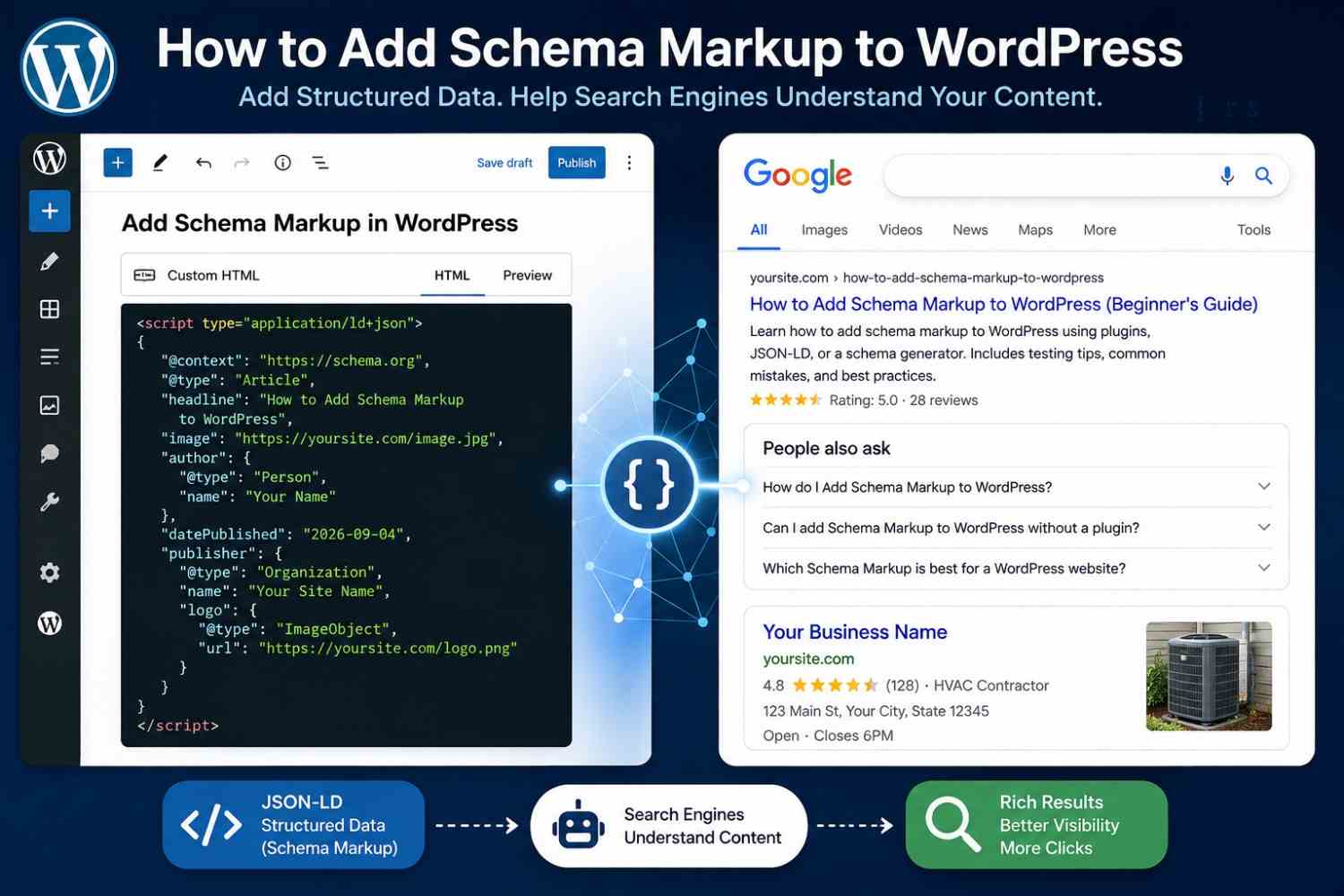
If you run a WordPress website, there's a good chance search engines are already crawling it — but crawling isn't the same as understanding. Schema markup gives search engines structured, machine-readable information about your content: what a page is about, who published it, what products or services you offer, and how different pieces of information relate to each other.
This guide walks you through adding schema markup to WordPress, practically and without the fluff.
What Is Schema Markup?
Schema markup is a type of structured data — code added to a web page that describes its content in a format search engines can reliably interpret. Schema.org provides the vocabulary and is supported and maintained by Google, Microsoft, Yahoo, and Yandex.
The most common format for implementing it is JSON-LD (JavaScript Object Notation for Linked Data). Google prefers JSON-LD because it sits in a <script> tag and doesn't need to be woven through your HTML. It's cleaner to implement and easier to maintain. You can learn more about how it works in this JSON-LD overview.
Why Add Schema Markup to a WordPress Website?
Structured data helps search engines answer questions they'd otherwise have to guess at:
- Is this page written by an expert or an organization?
- Does this business have physical locations and opening hours?
- Is this a product listing, and if so, what's the price range?
- Does this page contain an FAQ that could be surfaced in search?
Valid schema doesn't guarantee higher rankings or rich results in Google Search. What it does is give search engines clearer signals — which matters especially as AI-driven search systems increasingly rely on structured, entity-based data to answer queries.
Choose the Right Schema Type
The most important decision is coordinating the schema type to the actual content of the page. A common mistake is applying irrelevant schema just because it seems beneficial.
Practical examples:
- Blog post or news article → Article or NewsArticle schema
- Product page → Product schema (with Offer and optionally AggregateRating)
- Local business → LocalBusiness schema
- Service page → Service schema
- Event listing → Event schema
- About or company page → Organization schema
For a full breakdown of what's available, the types of schema markup page covers the major categories worth knowing.
How to Add Schema Markup to WordPress
There are three practical approaches, each suited to different levels of technical comfort.
Method 1: Use a WordPress SEO or Schema Plugin
Plugins like Yoast SEO, Rank Math, or dedicated schema plugins can automatically generate structured data based on your post type and settings. Most will add Article schema to blog posts, Product schema to WooCommerce pages, and let you configure organization or breadcrumb details site-wide.
This is the lowest-friction option for most WordPress users. The trade-off is that you're working within the plugin's logic, which may not cover every schema type or property you need.
Method 2: Add JSON-LD Manually
For more control, you can add JSON-LD directly to a page using a custom HTML block in the WordPress editor, or via a plugin that lets you inject code into the <head> of specific pages.
A simple Article schema block looks like this:
<script type="application/ld+json">
{
"@context": "https://schema.org",
"@type": "Article",
"headline": "Your Article Title",
"author": {
"@type": "Person",
"name": "Author Name"
},
"datePublished": "2026-09-04"
}
</script>
Keep the values accurate and matched to what's visible on the page. Don't include fields you can't populate correctly.
Method 3: Use a Schema Markup Generator
A generator lets you fill in a form and outputs ready-to-use JSON-LD. This works well for schema types that have many required properties — especially local businesses, products, FAQs, and events.
For example, if you're adding FAQ structured data, the FAQ schema generator produces clean JSON-LD you can paste directly into WordPress. Similarly, the local business schema generator is useful for service-area businesses that need accurate LocalBusiness markup.
Always review generated output before publishing. Generators work from what you input — if your address, hours, or pricing are wrong in the form, they'll be wrong in the markup.
How to Test WordPress Schema Markup
After adding structured data, validate it before assuming it's working correctly. Two reliable tools:
- Google Rich Results Test (search.google.com/test/rich-results) — checks whether your page's structured data qualifies for rich result features in Google Search
- Schema Markup Validator — checks syntax and Schema.org conformance independently of Google's eligibility rules
These tools serve different purposes. Passing the Schema.org validator means your markup is structurally correct. Passing the Rich Results Test means Google can read it and it meets their specific requirements. Neither result guarantees a rich result will actually appear. You can also run a quick check using the schema markup validator directly.
Common WordPress Schema Mistakes
- Using a schema type that doesn't match the page content
- Adding markup for information visitors can't see on the page
- Marking up fake or inflated review ratings
- Duplicating the same schema from both a plugin and manual code
- Leaving placeholder or incorrect business details (wrong phone number, outdated hours)
- Adding schema to every page indiscriminately rather than where it's relevant
- Forgetting to revalidate after a major plugin update changes how structured data is generated
Best Practices for WordPress Schema Markup
- Keep all structured data consistent with the visible page content — always
- Use the most specific schema type that accurately describes the page
- Validate after every significant change
- Check your schema after WordPress major version updates or plugin upgrades
- If you're using a plugin, understand what schema it's already generating before adding more manually
Final Takeaway
Adding schema markup to WordPress isn't just a technical checkbox. The real work is choosing the right schema type for each page, keeping the data accurate, and properly validating your implementation. Get those three things right, and you've done more than most WordPress sites ever do with structured data.
For a broader look at implementation across several platforms and use cases, the guide to adding schema markup covers additional scenarios worth reviewing.
FAQ
How do I add Schema Markup to WordPress? You can add schema markup to WordPress using an SEO or schema plugin (which generates it automatically), by inserting JSON-LD manually via a custom HTML block in the editor, or by using a schema generator to produce the code and then adding it to the relevant page.
Can I add Schema Markup to WordPress without a plugin? Yes. You can add a <script type="application/ld+json"> block directly in the WordPress block editor using a Custom HTML block. This gives you full control over the markup without requiring any plugin, though you'll need to manage and update it manually.
Which Schema Markup is best for a WordPress website? It depends on your content. Blog posts typically use Article schema, product pages use Product schema, local businesses use LocalBusiness schema, and informational pages with Q&A content benefit from FAQ schema. There's no single best type — the right schema is the one that accurately describes what's on the page.
How can I test Schema Markup in WordPress? Use Google's Rich Results Test to check whether your markup qualifies for rich result features, and the Schema Markup Validator to verify structural correctness against Schema.org standards. Run both after implementing or changing any structured data.